The Dasher app is your home base for earning with DoorDash. You use it to go online, pick up delivery offers, navigate to restaurants and customers, and watch your earnings add up — all from your smartphone. If you're new to dashing, this delivery app can feel like there's a lot going on, but it's really just five simple tabs that each handle one part of dashing.
This guide and tutorial for new Dashers walks you through exactly how to use the Dasher app, in the order you'll actually use it: setting up your account, going online, accepting and completing your first delivery, receiving your earnings, and using the safety and account tools that make dashing smoother. Whether you're about to make your first delivery or you've been a Dasher for a while and want to dash more efficiently, you'll find what you need below.
What is the Dasher app?
The Dasher app is separate from the DoorDash app that customers use to order food. It's the app Dashers use to find and complete deliveries, and it's available as a free download for both iOS and Android.
Before you can become a Dasher, you'll create an account, choose how you want to deliver (by car, bike, scooter, motorcycle, or on foot in some markets), and complete a background check and identity verification. Because a Dasher works as an independent contractor, sign-up asks for details like your driver's license and Social Security number so DoorDash can run that background check. Once you're approved and signed in, you're ready to dash.
Setting up your account
The first time you open the app, you'll be asked to sign in and finish a few setup steps:
Verify your identity. DoorDash partners with a secure third-party identity-verification provider to confirm you are who you say you are. You'll upload a photo of a valid government-issued ID (like your driver's license) and take a selfie so it can be matched to your ID. You may be asked to verify at sign-up and, occasionally, again before a dash. Important: DoorDash will only ever ask you to verify inside the Dasher app or through its official verification provider — never send your personal information to anyone who contacts you claiming to be from DoorDash.
Add your vehicle and contact details. These live in the Account tab and can be updated any time.
Add a bank account. You'll need this to receive your earnings. You can add it now or later from the Earnings tab.
Once setup is done, the app opens to the Dasher tab — your home base.
The 5 tabs of the Dasher app explained
Most of learning how to use the Dasher app comes down to these five tabs. Once you know what each one does, dashing —accepting orders, receiving your earnings, tracking your ratings— falls into place.
1. The Dasher tab (Dash Now)
The Dasher tab is the main screen. Tap Dash Now to go online immediately and start receiving orders if dashes are available in your area. Once you're online you'll see:
A map of your surroundings with Hotspots — areas marked with a flame icon where order volume is typically high. Hotspots aren't live orders; they're a hint about where to position yourself to get more offers.
A menu in the upper-left corner to pause, extend, or end your dash.
A bell icon for in-app announcements and promotions.
You can also switch here between Dash Now (go online right away) and scheduling for later.
2. The Schedule tab
The Schedule tab lets you reserve a time and area to dash in advance — usually up to a week ahead. Scheduling is useful in busy markets because it lets you reserve a spot ahead of time, even when the zone is full. After a planned schedule starts, you can tap the pencil icon to edit, end early, or extend your scheduled dash. Once a block is booked, it stays yours even if the zone later greys out.
3. The Account tab
The Account tab is where you view and manage your profile: name, phone number, email, vehicle, and app settings. A couple of useful tips:
Update your vehicle details and phone number directly from this tab.
If you need to change your phone number but no longer have access to the old one, tap the question mark icon and follow the on-screen steps.
This is also where you set your navigation preference — in-app navigation, or a third-party maps app.
For anything you can't change yourself, contact Dasher Support in the app or by phone at 855-431-0459.
4. The Ratings tab
Your performance as a Dasher is tracked through ratings, and they affect the programs and perks you qualify for. The Ratings tab shows:
Customer rating: your average star rating from customers (based on your most recent deliveries).
Acceptance rate: the percentage of offers you accept. A higher acceptance rate can improve your access to more orders and programs like Top Dasher.
Completion rate: the percentage of accepted deliveries you complete. Try to complete the orders you accept; check the Dasher app or Help Center for the current requirement.
Lifetime deliveries: your total completed deliveries.
5. The Earnings tab
The Earnings tab gives you a full view of your earnings: Base Pay, customer tips, Peak Pay, and any promotions, shown by week and by day. It's also where you add or update your bank account and set up faster payouts (more on that below).
Set a weekly earnings goal: Within the Earnings tab, you can also set a weekly earnings goal to help you plan and track your dashing.
Tap Get Started under "Set a weekly earnings goal," and the app will suggest a few goal amounts based on your recent dashing history and typical hours — you can pick one of these or set your own.
Once confirmed, a progress bar on the Earnings tab updates automatically as you dash, showing how much you've earned toward your goal and how much remains.
You can check your progress in a few places: on the Earnings tab at any time, during a dash as you complete deliveries, or right after each dash to see how it added to your weekly total.
Goals are meant to help you plan your week, not create pressure — if you don't hit it, you can simply adjust it, keep dashing toward it, or set a new goal that better fits your schedule going forward.
How to start dashing: Dash Now vs. Schedule
There are two ways to go online:
Dash Now: Go online instantly if your area has availability. Best when you're already free and want to start right away.
Schedule a Dash: Reserve a block of time and a zone ahead of time. Best for locking in busy periods like lunch and dinner rushes.
Either way, once you're online, head toward a Hotspot to improve your chances of getting an offer.
How to do a real DoorDash delivery, step by step
Here's the full flow of a single delivery inside the app, from offer to drop-off:
Receive an offer. When an order comes in, the app shows you the guaranteed minimum earnings and the distance before you decide. You'll have a short countdown (typically under a minute) to accept or decline.
Accept the order. Tap Accept to claim it. Declining is allowed — how it affects you depends on your earning mode (see below).
Navigate to the restaurant or store. Tap the directions button to start turn-by-turn navigation. You can use DoorDash's in-app navigation, or route with your own third-party maps app.
Pick up the order. When you arrive, use the "Slide upon arrival" slider to confirm you're there. Give the customer's name to the staff. Orders are already paid for, so you just collect the food and go — unless it's a Shop & Deliver order (see below).
Navigate to the customer. The app routes you to the drop-off and shows any special delivery instructions. Previewing these while you wait for the food saves time at the door.
Complete the delivery. Most deliveries are contactless by default. Follow the customer's instructions for where to leave the order, then take the confirmation photo the app prompts you for. Once submitted, the delivery is complete and you're ready for the next offer.
Earn by Offer vs. Earn by Time
In many markets the app lets you choose how you earn before you start a dash. Understanding the difference helps you pick the right mode for the day.
Earn by Offer gives you a delivery payment for each order. Base Pay varies with the estimated time, distance, and desirability of the order, plus any tip from the customer. You can decline offers you don't want.
Earn by Time gives you guaranteed hourly earnings for your active time —the time from when you accept an offer until you complete it— plus tips. In this mode the number of offers you can decline or unassign may be limited. Earnings are steadier and more predictable, though customer tips may be less frequent.
There's no universally "better" choice: Earn by Time offers stability, while Earn by Offer offers flexibility during peak hours. Many Dashers switch between them depending on how busy their area is. You receive the customer's tip in either mode.
Shop & Deliver, Crimson Card, and Dash Preferences
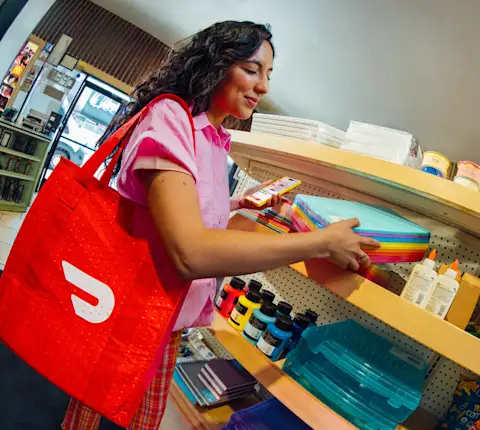
Not every order is a simple restaurant pickup. Some are Shop & Deliver orders, where you shop for items inside a store and pay at checkout using your Crimson Card (the DoorDash-issued card that replaced the Red Card) — the app tells you exactly what to buy and walks you through checkout.
DoorDash is also testing Dash Preferences for select Dashers, a set of toggles that let you opt in or out of certain offer types —such as Shop & Deliver, Cash on Delivery, and alcohol orders. (You must be 21+ with a valid driver's license to deliver orders containing alcohol.)
Opting out of a type simply means you won't receive those offers (which may mean longer waits between orders). A "high demand" tag means that order type is especially popular in your area that day, and tags refresh daily.
How and when you receive your earnings
DoorDash gives you a few ways to receive your earnings:
Weekly direct deposit. DoorDash sends your earnings for the previous week by direct deposit. The exact timing can vary depending on your bank.
Fast Pay. Cash out your earnings daily for a small fee. You'll need a debit card connected to your account. Set it up from the Earnings tab under payout details.
DoorDash Crimson. Crimson is DoorDash's own banking option built into the app, offering faster access to your earnings. (It replaced the earlier DasherDirect card.)
On top of Base Pay and customer tips, watch for Peak Pay — extra earnings per delivery during busy times — plus Challenges and other in-app promotions (for example, complete a set number of deliveries in a window for a bonus) shown on the Dasher and Earnings tabs.
Safety features every Dasher should know
DoorDash builds several safety tools directly into the app. It's worth turning these on before you dash:
SafeDash & Real-Time Safety Alerts. A safety toolkit that can share your location, check in on you, and connect you to help. If a delivery ever feels unsafe, you can unassign or cancel through the safety tools. In an emergency, you can always contact 911 or use the in-app emergency button.
SafeChat+. Monitors in-app messages for harmful or abusive language and gives you the option to safely unassign from an order if a conversation crosses the line.
Location sharing. You can share your live trip status with someone you trust while you dash.
These tools are found in the app's safety menu and account settings.
Managing your account and troubleshooting
A few situations come up often for new Dashers:
App outages. If the app won't load orders, it may be a temporary outage. Check your connection, update the app, and try again before contacting support.
Can't schedule or Dash Now. This usually means your area is at capacity or your account needs attention — try a nearby zone or a different time slot.
Locked account. If your account is locked, you won't be able to dash, cash out, or chat with customers and merchants until it's resolved. Contact Dasher Support to find out the next steps.
Reset your password or update info. Handle both from the Account tab.
These habits help new Dashers dash more efficiently and avoid rookie mistakes — think of them as the DoorDash secrets experienced Dashers wish they'd known on day one:
Position near Hotspots before and between orders to get offers faster.
Schedule busy windows (lunch and dinner) in advance so you don't get shut out of full zones.
Preview delivery instructions while you wait for food to speed up the drop-off.
Track your ratings weekly so your completion rate stays healthy.
Pick the right earning mode for the day — Earn by Time when orders are slow, Earn by Offer when you can cherry-pick high-value orders.
Weigh multi-apping carefully — some Dashers run more than one delivery app at once (multi-apping) to cut downtime, but only accept what you can deliver on time so multi-app juggling doesn't tank your completion rate.
Keep your gear ready — a phone mount, a charged smartphone, insulated/pizza bags, and your Crimson Card if you take Shop & Deliver orders.
Now that you know how to use the Dasher app from setup to payout, the fastest way to get comfortable is to complete that first delivery.
Ready to start earning on your own schedule? Sign up to become a Dasher →
Frequently Asked Questions
How do I start using the Dasher app?
Download the Dasher app for iOS or Android, sign up, complete your background check and identity verification, add your vehicle and bank details, then tap Dash Now or schedule a dash to go online. From there, learning how to use the Dasher app is mostly about getting comfortable with its five tabs.
How do I become a Dasher?
To become a Dasher you must be at least 18, have a valid driver's license (or be eligible for bike or on-foot delivery in some markets), a Social Security number for the background check, and a smartphone. Sign up in the Dasher app, pass the background check, and verify your identity to start dashing as an independent contractor.
Is the Dasher app the same as the DoorDash app?
No. The DoorDash app is for customers ordering food. The Dasher app is the separate app Dashers use to accept and complete deliveries and track earnings.
What are the tabs in the Dasher app?
The five main tabs are Dasher (Dash Now), Schedule, Account, Ratings, and Earnings. They cover going online, planning times, managing your profile, tracking performance, and viewing earnings.
How do I accept orders on the Dasher app?
When an offer appears, review the guaranteed minimum earnings and distance, then tap Accept within the countdown. You can also decline offers you don't want.
Do acceptance and completion rates matter?
Your acceptance rate can affect your access to certain orders and programs, and DoorDash asks you to keep your completion rate high to stay active. Check the Dasher app or Help Center for the current requirements.
When do Dashers receive their earnings?
You receive earnings weekly by direct deposit, with the exact timing depending on your bank. You can also cash out daily with Fast Pay for a small fee, or use DoorDash Crimson.
What are Hotspots in the Dasher app?
Hotspots are areas on the map (marked with a flame icon) where order volume is usually high. They're not live orders, but positioning near them can help you get offers faster.
What's the difference between Earn by Time and Earn by Offer?
Earn by Time gives guaranteed hourly earnings for your active delivery time plus tips. Earn by Offer gives a delivery payment for each order (Base Pay plus tips) and lets you decline offers you don't want. You receive customer tips in both modes.
What do I do if a delivery feels unsafe?
Use the app's SafeDash safety tools to unassign or cancel, and contact 911 in an emergency.